
Learning how to set up a gaming PC for VR can seem complicated, but it’s actually a straightforward process when you know the key steps. This guide will walk you through the essential requirements and steps to get your VR experience up and running smoothly.
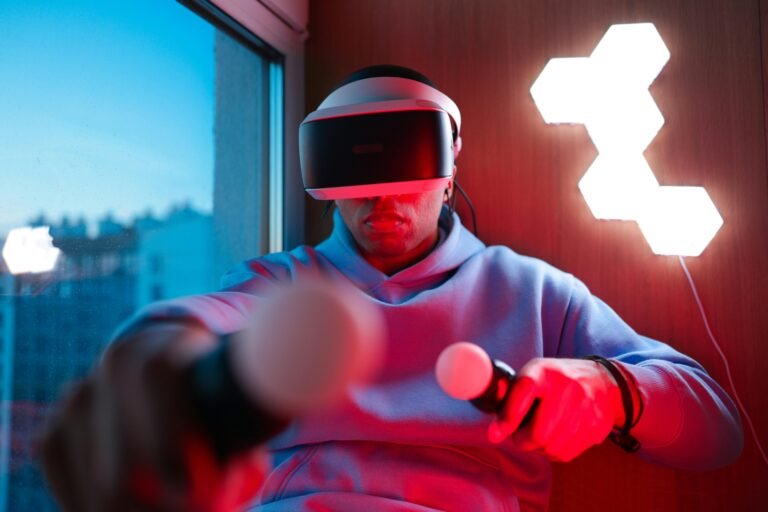
What is Needed to Set Up a Gaming PC for VR?
To set up a gaming PC for VR, you’ll need a powerful computer, a VR headset, and compatible accessories. A high-end CPU, GPU, and sufficient RAM are crucial for an immersive VR experience. Let’s break down the specifics.
Key Requirements:
- Powerful CPU & GPU: A high-end processor and graphics card are essential to handle the heavy processing requirements of VR. Popular choices include the Intel i7 or AMD Ryzen 7 CPUs and NVIDIA RTX 30 series or AMD RX 6000 series GPUs.
- Minimum RAM: At least 16GB of RAM is recommended to avoid any performance lags.
- USB Ports: Ensure your PC has enough USB ports (preferably USB 3.0) to connect the VR headset and other accessories.
- VR Headset: Choose a VR headset that matches your PC’s capabilities. Popular options include the Oculus Rift S, HTC Vive Pro, and Valve Index.
How to Set Up Gaming PC for VR: Step-by-Step
- Check PC Specifications: First, make sure your gaming PC meets the minimum requirements for VR.
- Install the VR Software: Download the necessary software for your VR headset (like SteamVR or Oculus software).
- Connect the VR Hardware: Plug the VR headset into your gaming PC using the HDMI/DisplayPort and USB cables. If you’re using external sensors, set them up around your play area.
- Adjust Your Settings: Follow the setup process in your VR software to calibrate your headset, configure your play area, and test your setup.
Optimizing Your Gaming PC for VR Performance
Setting up your gaming PC for VR isn’t just about connecting the hardware—it’s also about optimizing performance to ensure smooth gameplay and an immersive experience. Here are some key tips to get the most out of your VR setup:
1. Update Your Drivers
Ensure your graphics card drivers and VR headset software are up-to-date. Manufacturers like NVIDIA and AMD release regular updates that improve performance, compatibility, and bug fixes. Always check for the latest drivers before starting a VR session.
2. Optimize Your Graphics Settings
VR requires a high frame rate to provide a smooth, comfortable experience. If you’re experiencing lag or stuttering, lower some of the graphic settings in your VR game or application. You can tweak resolution, anti-aliasing, and other settings to balance visuals and performance.
3. Enable VR-Specific Settings
Some graphics cards have VR-specific settings that optimize performance for VR applications. Make sure these settings are turned on in your GPU control panel. Additionally, check your VR headset’s settings for options like frame rate locking and latency reduction.
4. Increase Your PC’s Cooling
VR sessions can be demanding on your system. If your PC is overheating, it could throttle performance, causing lag or interruptions in the VR experience. Make sure your PC has proper cooling, such as a good airflow case or additional fans, to keep temperatures down.
5. Adjust SteamVR Settings (For Steam Users)
If you’re using SteamVR, head to the settings and tweak the “Render Resolution” and “Motion Smoothing” settings to optimize performance. Setting the resolution higher can improve clarity, but too high can hurt performance. Play around with the settings to find the sweet spot for your setup.
6. Free Up Resources
Close any unnecessary applications running in the background that could be taking up CPU or RAM resources. VR requires maximum system power, so closing excess programs can help reduce lag and improve the quality of your experience.
By focusing on these optimization tips, you can ensure your gaming PC delivers the best possible VR performance, providing a smoother, more enjoyable experience.
Performance Considerations
When setting up a gaming PC for VR, optimizing performance is key. Here’s a quick look at the components that affect VR performance:
- CPU: A fast processor ensures that VR applications run smoothly without lag.
- GPU: The graphics card is the most important component for rendering high-quality visuals in VR.
- RAM: Sufficient RAM helps with multitasking and ensures that the VR experience remains responsive.
By following these steps and ensuring your hardware meets the VR requirements, you’ll be ready to dive into an immersive VR world.